We’ve added a new Single Sign-On (SSO) flow for our three Freshdesk support portals so employees can submit tickets without manually logging in.
Support portals (Microsoft “My Apps” tiles)
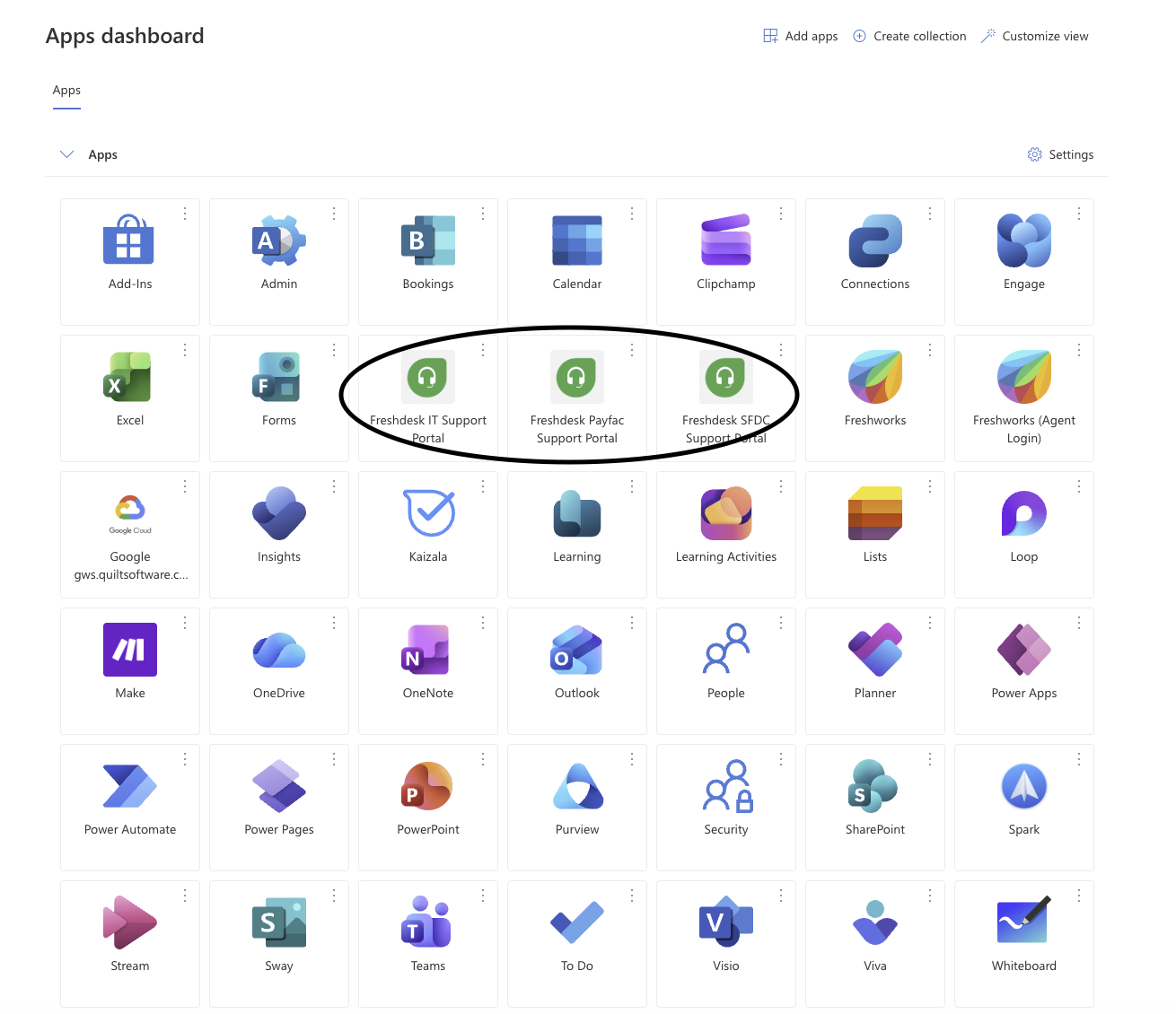
You’ll now see these three new app tiles in Microsoft “My Apps”:
Freshdesk IT Support Portal
Freshdesk Payfac Support Portal
Freshdesk SFDC Support Portal
Step-by-step instructions
1) Open Microsoft “My Apps.”
Go to your Microsoft Apps dashboard / My Apps page (the same place you launch other internal apps).
Find the new portal tile you need:
Freshdesk IT Support Portal (IT requests)
Freshdesk Payfac Support Portal (Payfac-related support)
Freshdesk SFDC Support Portal (SFDC-related support)
Click the appropriate tile.
2) You’ll land on the Quilt Software Support login page
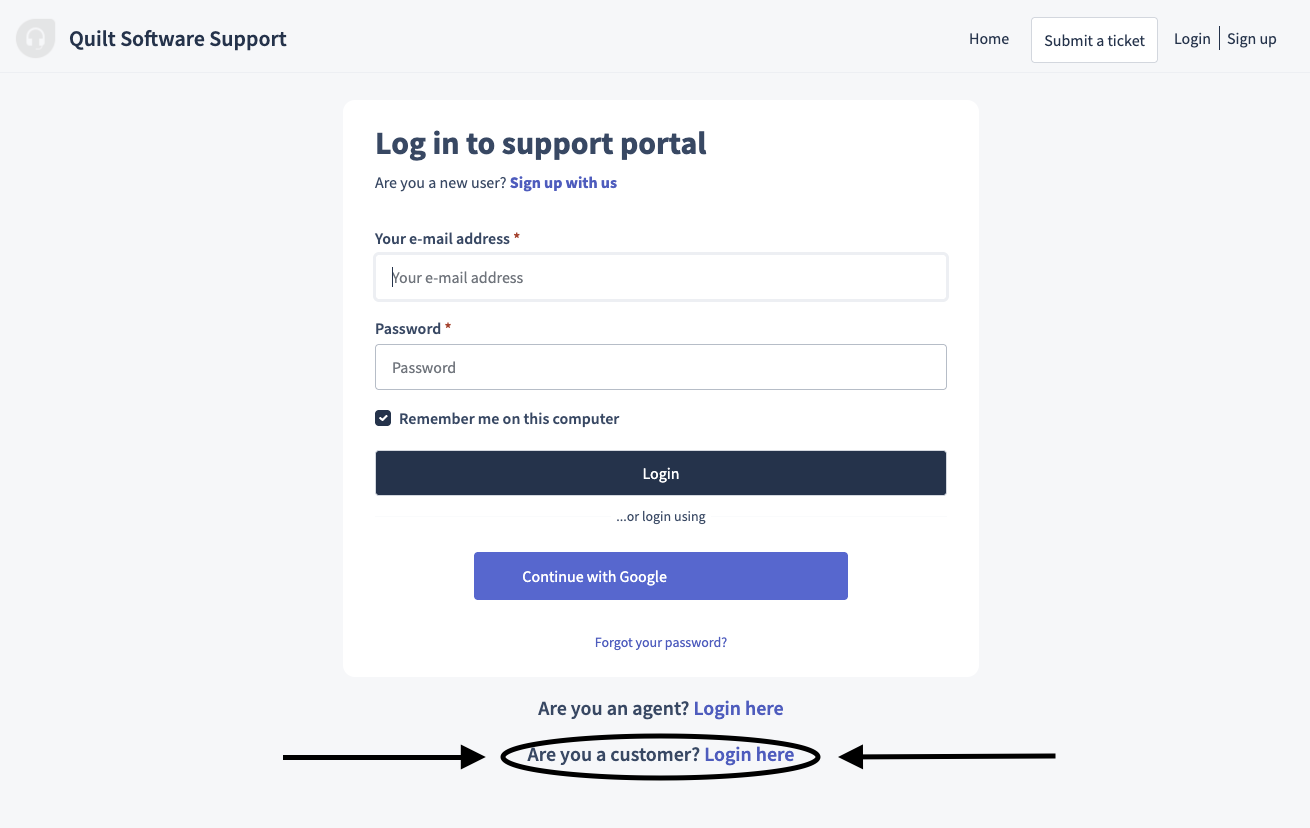
After clicking the tile, you’ll be taken to a Freshdesk login page that looks like “Log in to support portal”.
Important: Do not use the standard login fields.
3) Click the correct link to use SSO
On that login page, scroll down (below the login button area) and click:
✅ “Are you a customer? Login here”
That link triggers the new SSO authentication and will sign you in automatically.
4) Submit your ticket
Once authenticated, you can:
Click Submit a ticket
Fill out the form
Submit
You should not need to create an account or enter a Freshdesk password.
Common issues & fixes
If you don’t see “Are you a customer? Login here”
Scroll to the bottom of the login box/page (it’s near the bottom under the other login options).
Try refreshing the page once.
If the SSO pop-up/authentication doesn’t complete
Make sure your browser allows pop-ups for the support portal.
Try an InPrivate/Incognito window.
If you have multiple Microsoft accounts signed in, sign out of the others or use a private window to force the correct account.
If it still asks you to log in manually
Go back and confirm you clicked “Are you a customer? Login here” (that’s the SSO entry point).
If you clicked it and still get prompted, clear site cookies for the portal and try again.
Quick tip
Use the Microsoft “My Apps” tiles as your starting point—this ensures you land in the correct portal and the SSO flow works reliably.
Was this article helpful?
That’s Great!
Thank you for your feedback
Sorry! We couldn't be helpful
Thank you for your feedback
Feedback sent
We appreciate your effort and will try to fix the article